
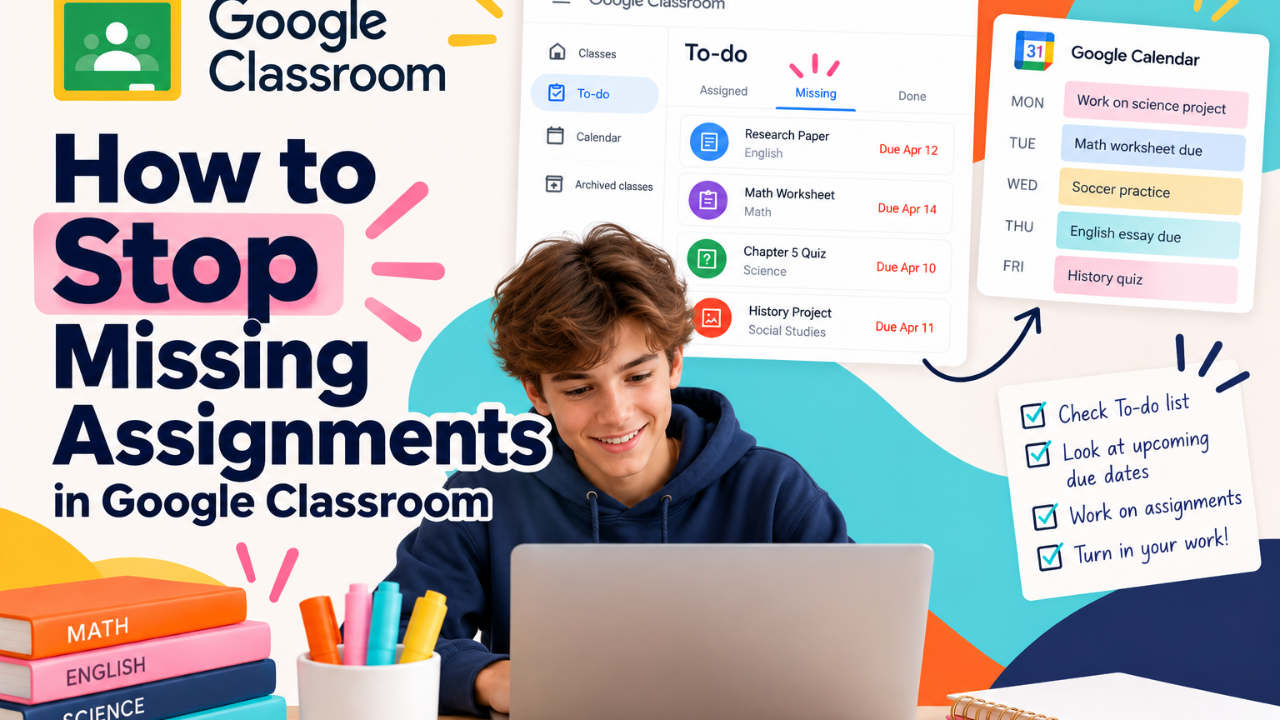
How to Stop Missing Assignments in Google Classroom: 7 Practical Tips
You open Google Classroom, check the Stream, and don't see anything that needs your attention. Great! You're all caught up. Or so you think.
A few days later, your teacher tells you that you're missing two assignments. You don't remember seeing them, and now you're scrambling to catch up. Sound familiar?
Here's the thing: Just because you check Google Classroom every day doesn't necessarily mean you're keeping track of everything you need to do.
When you're juggling six or seven classes, each with different assignments, deadlines, and teacher expectations, it's easy for something to slip through the cracks.
The solution isn't to spend more time scrolling through Google Classroom. It's to develop a simple system that helps you see what needs to get done, plan your time, and make sure your work actually gets submitted.
Here are seven practical ways to stop missing assignments in Google Classroom.
1. Stop Using the Stream to Track Your Homework
One of the biggest mistakes students make is relying on the Google Classroom Stream to keep track of assignments.
The Stream is designed to display classroom activity, including teacher announcements, assignment notifications, and other updates.
The problem? New posts push older information farther down the page.
An assignment posted on Monday might be buried beneath several announcements and updates by Wednesday. And if you're enrolled in multiple classes, keeping track of everything through individual Streams becomes even more difficult.
Instead, use the Classwork tab.
Classwork is where teachers organize assignments, materials, quizzes, and other course resources.
When you want to know what's happening in a particular class, go directly to Classwork rather than scrolling through the Stream.
Think of it this way:
-
Stream = What's being announced.
-
Classwork = Where your actual schoolwork lives.
Knowing the difference is one of the first steps toward getting organized.
2. Use the To-do List to See Assignments Across All Your Classes
Checking each class individually can be time-consuming, especially when you have six or seven subjects.
Fortunately, Google Classroom has a feature that brings your assignments together in one place: the To-do list.
To access it:
-
Open Google Classroom.
-
Click the three horizontal lines (Main Menu) in the upper-left corner.
-
Select To-do.
-
Review your assigned, missing, and completed work.
The To-do list is particularly helpful because it gives you a broader view of your workload without requiring you to open every class.
For example, you might discover that you have a math worksheet due tomorrow, a science assignment due Thursday, and an English essay due Friday.
Individually, those assignments might not seem like much. But when you see them together, you can start making better decisions about how to manage your time.
A helpful habit: Check your To-do list before you start homework each afternoon. This gives you a starting point instead of relying on memory to figure out what needs to get done.
Also See: How to Find Missing Assignments in Google Classroom
3. Use Google Calendar to See What's Coming
Knowing what homework you have tonight is important. But knowing what's coming later in the week is just as valuable. This is where Google Calendar becomes useful.
Google Classroom integrates with Google Calendar, allowing you to see assignments with due dates alongside your other scheduled activities.
Rather than thinking about assignments one at a time, you can see how your schoolwork fits into your week.
For example, imagine you have:
-
A science project due Thursday.
-
A math test on Friday.
-
An English essay due Friday.
-
Soccer practice Tuesday, Wednesday, and Thursday.
If you only look at what's due tomorrow, you might not realize how busy the end of your week will be. But when you look at your calendar, you can see that Wednesday and Thursday are going to be packed.
That gives you an opportunity to start your English essay on Monday instead of waiting until Thursday night.
Don't Confuse a Due Date With a Work Date
Here's an important distinction.
A due date tells you when an assignment needs to be finished. It doesn't tell you when you should actually work on it.
If your science project is due Friday, you probably shouldn't wait until Friday to start it! Use your personal Google Calendar to schedule time for larger assignments before they're due.
For example, you could create calendar events for researching, writing, and reviewing your science project throughout the week. This helps turn a big assignment into smaller, more manageable pieces.
4. Don't Ignore Google Classroom Notifications
Google Classroom notifications can be helpful, but only if you know how to manage them.
Depending on your settings, Google Classroom can send email notifications about new assignments, teacher comments, returned work, and other classroom activity.
The challenge is that students often receive so many notifications that they stop paying attention to them altogether. Important messages can easily get lost among announcements, class comments, and other updates. Instead of turning everything off or ignoring your inbox, take a few minutes to customize your notification settings.
In Google Classroom:
-
Open the Main Menu.
-
Select Settings.
-
Find the Notifications section.
-
Review the types of notifications you receive.
-
Adjust your preferences so you're receiving the updates that matter most.
For example, you may want to keep notifications about new assignments, teacher comments, and returned work while limiting less important classroom activity. The goal is to make notifications useful rather than overwhelming.
Use Gmail to Keep Important School Messages Organized
You can also use Gmail labels and filters to help organize school-related emails. For example, you might create labels for different subjects or use filters to automatically organize messages from certain teachers.
This makes it easier to locate important information without digging through a crowded inbox. Just remember: Email notifications are a backup, not your primary assignment management system.
Your To-do list and Classwork should still be your main sources for tracking schoolwork.
5. Make Sure You Actually Turned In Your Assignments
This might sound obvious, but it's one of the easiest ways to end up with missing work. You complete an assignment in Google Docs, close your computer, and assume you're finished. But there's one problem. You never clicked Turn in.
Google Classroom doesn't necessarily recognize that you've completed an assignment simply because you worked on an attached document. Depending on the assignment type, you may need to click Turn in or Mark as done to officially submit your work.
Before moving on to your next assignment, take a moment to:
-
Make sure you've completed all the required work.
-
Check that you've attached the correct documents or files.
-
Click Turn in or Mark as done, if required.
-
Confirm that the assignment status has changed to Turned in.
This extra step takes only a few seconds, but it can prevent a lot of unnecessary confusion later.
Remember: Finished doesn't always mean submitted!
6. Create a Five-Minute Daily Google Classroom Check-In
You don't need an elaborate organizational system to stay on top of your assignments. In fact, the simpler your routine, the more likely you are to stick with it. One of the best habits you can develop is a quick Google Classroom check-in at the same time every school day.
For example, before you start homework each afternoon, spend five minutes reviewing what's happening across your classes.
Your Daily Google Classroom Checklist
- Open Google Classroom and review your To-do list.
- Check for missing or overdue assignments.
- Look at upcoming deadlines.
- Review Google Calendar to see what's coming over the next few days.
- Check Gmail for important teacher messages or comments.
- Decide which assignments you need to work on today.
Then, before you finish your homework for the evening, take one final minute to make sure everything you've completed has actually been submitted.
This routine helps you answer three important questions:
What do I need to do? What's coming next? Did I turn everything in?
Once you can answer those questions consistently, managing your schoolwork becomes much easier.
7. Build a System That Doesn't Rely on Your Memory
Here's something important to understand: Being organized doesn't mean remembering everything. It means having a reliable way to keep track of things so you don't have to remember them all. Think about how many details you're expected to manage during a typical school week.
You have assignments from multiple teachers, different due dates, quizzes, projects, teacher comments, emails, and extracurricular activities. Trying to keep all of that information in your head is difficult for anyone. Instead, use Google Classroom, Calendar, Gmail, and Tasks together to create a system.
Each tool has a different job:
| Tool | How It Helps You Stay Organized |
|---|---|
| Google Classroom | Find assignments, review instructions, and submit work. |
| To-do List | See assigned, missing, and completed work across classes. |
| Google Calendar | View upcoming deadlines and schedule time to work. |
| Gmail | Receive important teacher communications and assignment updates. |
| Google Tasks | Create personal reminders and break larger assignments into smaller steps. |
When you understand how these tools work together, you can spend less time figuring out what you're supposed to do and more time actually getting things done.
And that's the real goal.
Ready to Take Control of Your Schoolwork?
Missing assignments aren't always the result of forgetting to do your homework. Sometimes, you simply don't have a reliable system for keeping track of everything.
At Tech for Exec, our Master Google Classroom for Students course helps students build the organizational and executive function skills they need to manage schoolwork more independently.
Through short, easy-to-follow video lessons, students learn how to use Google Classroom, Gmail, Google Calendar, and Tasks together to track assignments, manage deadlines, organize their inboxes, and develop better daily habits.
Less confusion. Fewer missing assignments. More independence.
Explore Master Google Classroom for Students
Help Your Student Get Organized and Stay Organized
Google Classroom is easier when students have a system. Master Google Classroom for Students teaches students how to keep track of assignments, plan ahead, manage their time, and build habits that make school feel more manageable.