
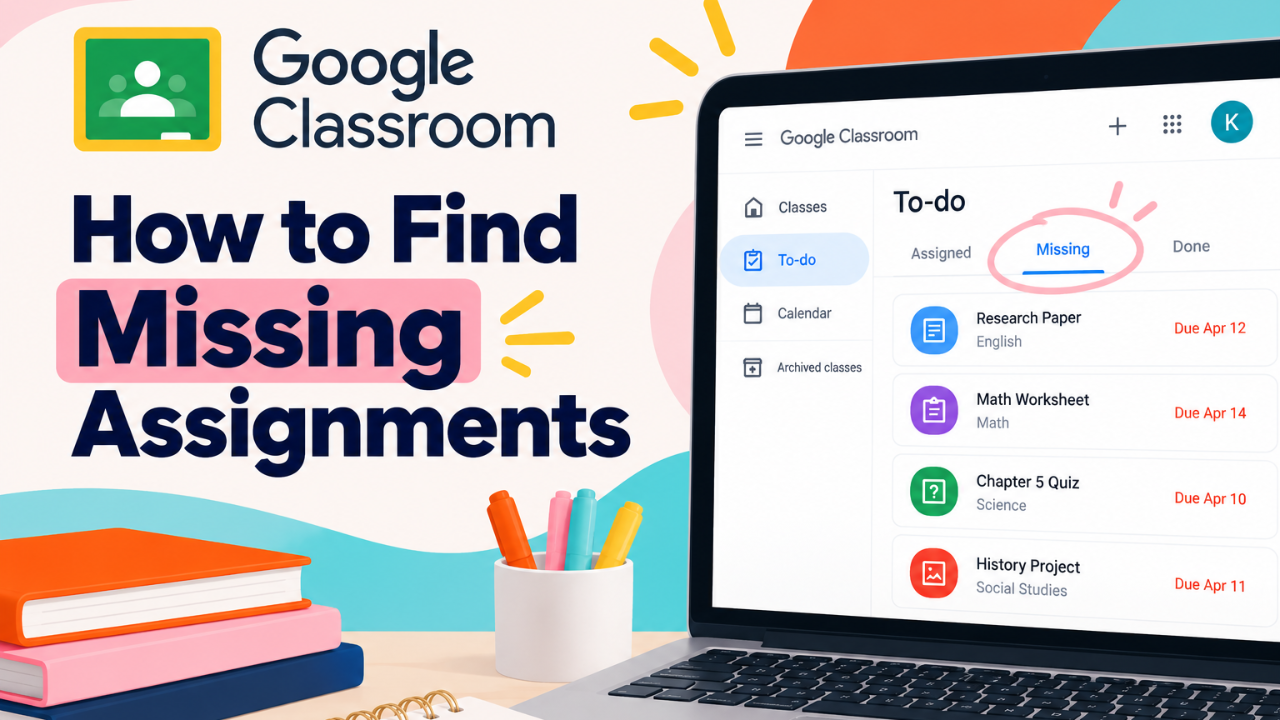
How to Find Missing Assignments in Google Classroom
Have you ever had a teacher tell you that you're missing an assignment, but you have no idea which one they're talking about?
Or maybe you just checked your grades and discovered you have several missing assignments you didn't even know about.
The good news is that Google Classroom makes it relatively easy to find missing work once you know where to look. You don't have to scroll through every class or search through weeks of announcements to figure out what you owe.
In this guide, we'll show you exactly how to find missing assignments in Google Classroom, check your work for individual classes, and understand why something might be marked as missing even when you've already completed it.
1. Where to Find Missing Assignments in Google Classroom
The easiest way to find missing assignments across all your classes is through Google Classroom's To-do list.
Instead of opening each class individually, the To-do list brings your assignments together in one place so you can quickly identify overdue work.
Here's how to find it:
-
Open Google Classroom and sign in with your school account.
-
Click the three horizontal lines (Main Menu) in the upper-left corner.
-
Select To-do.
-
Click the Missing tab.
You'll now see assignments that Google Classroom has identified as overdue and not turned in.
This is a great starting point because it allows you to review missing assignments from multiple classes without having to search through each one individually.
Tip: If you don't see a Missing tab, your school's version or interface may look slightly different. You can also check assignments within each class, which we'll cover next.
2. How to Find Missing Assignments for a Specific Class
Sometimes you don't need to see everything you're missing. You just want to know which assignments you owe for math, English, science, or another subject.
Google Classroom allows you to review your work for an individual class.
To find missing assignments in a specific class:
-
Open Google Classroom.
-
Select the class you want to check.
-
Click the Classwork tab at the top.
-
Select View your work, if available.
-
Review the assignment list and look for assignments marked Missing.
From here, you can open individual assignments to review the instructions, due dates, attached materials, and submission status.
This is particularly helpful when a teacher tells you that you're missing something but doesn't specify which assignment it is. You can also use the Classwork tab to locate assignments by topic if your teacher has organized the class that way.
Why Not Just Look Through the Stream?
You might be tempted to scroll through the Stream to find missing assignments, but that's not the most reliable approach.
The Stream contains all kinds of classroom activity, including announcements, assignment notifications, and other teacher posts. As new information is added, older posts move farther down the page. An assignment posted two weeks ago could be buried beneath dozens of newer posts.
For finding specific assignments, Classwork and the To-do list are much better places to start.
3. How to Tell if an Assignment Is Actually Missing
When reviewing your assignments, you'll notice that Google Classroom uses different statuses to indicate where your work stands.
Understanding these labels can help you figure out whether an assignment is truly missing or simply hasn't been submitted yet.
| Assignment Status | What It Means |
|---|---|
| Assigned | Your teacher has assigned the work, but you haven't marked it as turned in. |
| Missing | The assignment's due date has passed, and it hasn't been marked as turned in. |
| Turned in | You've submitted the assignment through Google Classroom. |
| Returned | Your teacher has returned your assignment, sometimes with a grade or feedback. |
One important thing to understand is that Google Classroom tracks whether you've submitted an assignment, not necessarily whether you've completed the actual work.
For example, you might have finished writing an entire essay in Google Docs, but if you forgot to submit it through Google Classroom, the assignment could still show as Missing.
That's why it's important to open an assignment and check its status before assuming you haven't done the work.
4. Why Does Google Classroom Say an Assignment Is Missing When I Already Completed It?
This is a common source of confusion for students.
You know you did the assignment. You remember working on it. You might even have the completed Google Doc sitting in your Drive. So why does Google Classroom say it's missing?
There are several possible explanations.
You forgot to click Turn in.
Completing an assignment and submitting it are two separate steps. If your teacher requires you to click Turn in, Google Classroom may continue showing the assignment as incomplete until you do.
You didn't attach your work correctly.
Perhaps you completed the assignment in a separate document but forgot to attach it to the assignment in Google Classroom.
Open the assignment and check whether the correct file is attached.
You completed the assignment outside Google Classroom.
Some teachers accept assignments on paper, through another website, or in person. If your teacher hasn't updated the assignment status in Google Classroom, it may still appear as missing.
Your teacher returned the assignment.
Your teacher may have returned your work with feedback or requested corrections. Check the assignment details to see whether there's anything else you need to do.
If you're certain you've submitted the assignment correctly but it still shows as Missing, contact your teacher to clarify its status.
5. Can You Still Turn In a Missing Assignment in Google Classroom?
Yes, in many cases, Google Classroom allows students to submit assignments after the due date.
However, whether your teacher accepts late work is a separate question.
To submit a missing assignment:
-
Open Google Classroom.
-
Locate the assignment using your To-do list or Classwork tab.
-
Open the assignment and review the instructions.
-
Complete the work and attach any required files.
-
Click Turn in or Mark as done, depending on the assignment type.
If you submit the assignment after its due date, Google Classroom may label it as turned in late.
Keep in mind that some teachers have specific policies about late submissions, so it's always a good idea to check with your teacher if you're unsure whether the assignment will still be accepted.
6. Why Can't I See My Missing Assignments in Google Classroom?
If a teacher says you're missing an assignment but you can't find it in Google Classroom, there are a few things worth checking.
Make sure you're signed into the correct Google account.
If you have multiple Google accounts, you may accidentally be viewing your personal account instead of your school account.
Check the correct class.
Open the individual class and review the Classwork tab. The assignment may be organized under a topic or farther down the page.
Check your assignment status.
An assignment might still be labeled Assigned rather than Missing, particularly if it doesn't have a due date or hasn't been updated as you expected.
Ask whether the assignment was posted in Google Classroom.
Not every assignment is necessarily distributed through Google Classroom. Your teacher may have assigned work in class, on paper, or through another platform.
If you still can't locate the assignment, ask your teacher for its name or where it was originally posted.
7. What to Do After You Find Your Missing Assignments
Once you've located your missing assignments, take a few minutes to review what you actually owe.
Start by opening each assignment and checking whether the work is incomplete or simply wasn't submitted correctly.
For assignments you haven't completed, review the instructions and due dates. If you're unsure whether your teacher still accepts late work, ask before spending time completing it.
The important thing is that you now know where to find your missing work and can start addressing it.
Keep Finding Missing Assignments? There's a Better Way.
Finding missing assignments is one thing. Making sure you don't miss them in the first place is another.
If you're constantly discovering overdue work in Google Classroom, it may be time to rethink how you're keeping track of your assignments.
At Tech for Exec, we help students develop the organizational and executive function skills they need to manage their schoolwork more independently.
Our Master Google Classroom for Students course teaches students how to use Google Classroom, Gmail, Google Calendar, and Tasks together to keep track of assignments, manage deadlines, and build a practical system for staying organized.
Less confusion. Fewer missing assignments. More independence.
Explore Master Google Classroom for Students
Help Your Student Get Organized and Stay Organized
Google Classroom is easier when students have a system. Master Google Classroom for Students teaches students how to keep track of assignments, plan ahead, manage their time, and build habits that make school feel more manageable.